
Biometric Login Setup Guide for Unlimluck
In the world of online casinos, security and convenience are paramount. Unlimluck, a modern gaming platform, has introduced biometric login options to streamline access while enhancing account protection. This guide provides a practical, step-by-step walkthrough for setting up fingerprint or facial recognition login for your Unlimluck casino account, detailing the process, benefits, and potential troubleshooting steps.
Prerequisites for Biometric Enrollment
Before you begin the setup process, ensure you meet all the necessary requirements. First, you must have an active account at Unlimluck. If you signed up using an Unlimluck promo code, your account is already eligible. Your device must support biometric authentication—this means a smartphone, tablet, or computer with a dedicated fingerprint scanner or a front-facing camera capable of facial recognition. Your device’s operating system (iOS, Android, or Windows Hello) should be updated to the latest version. Finally, you must have already set up a screen lock method (PIN, pattern, or password) on your device, as this is a prerequisite for enabling biometrics. The entire verification process typically takes less than five minutes if you have all prerequisites in order.
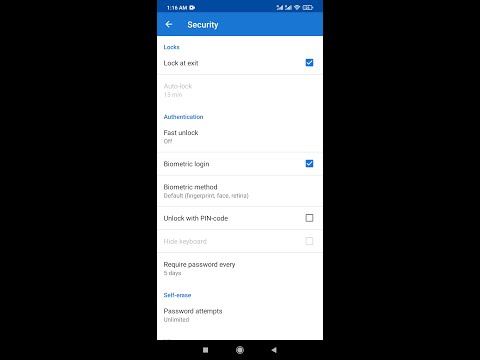
Step-by-Step Setup Process
Follow these steps carefully to enable biometric access. The exact labels may vary slightly depending on your device, but the general flow remains consistent.
- Log in to your Unlimluck account using your standard username and password.
- Navigate to the ‘My Account’ or ‘Security Settings’ section within your profile.
- Locate and select the ‘Biometric Login’ or ‘Fast Login’ option.
- You will be prompted to authenticate with your current password for security.
- Follow the on-screen instructions to enroll your fingerprint or face. This usually involves placing your finger on the sensor multiple times or moving your head in a circle for the camera.
- Once enrollment is complete, confirm the activation. You should see a success message.
- Log out of your account and attempt to log back in. You should now see an option to use your biometric data instead of typing your password.
Common Issues and Troubleshooting
Sometimes, the setup doesn’t go as planned. Here are solutions to frequent problems players encounter when activating biometric login for their Unlimluck account.
- Option Not Appearing: If you don’t see the biometric login option in your settings, ensure your device hardware supports it and that you are using the official Unlimluck app, not a mobile browser.
- Enrollment Fails: Ensure your fingers are clean and dry. For facial recognition, make sure you are in a well-lit area. Restarting the app or your device can also resolve temporary glitches.
- Login Not Working After Setup: This is often a device-level issue. Go into your device’s system settings (not the app) and ensure that the biometric unlock feature itself is still enabled and functioning.
- App Crashing: An outdated app version is a common cause. Check your app store for any available updates for the Unlimluck application.
Security and Convenience Benefits
Using biometrics offers a significant security upgrade over traditional passwords. Unlike a password, your fingerprint or face cannot be guessed, phished, or easily stolen. It adds a powerful layer of protection to your account and any Unlimluck bonus balances you may have. From a convenience standpoint, it eliminates the need to remember and type complex passwords, allowing for near-instant access to games and features. This is especially useful for claiming time-sensitive offers like Unlimluck free spins. The biometric data is stored securely on your device and is not transmitted to or stored on the servers of the casino.
Comparison of Login Methods
The table below compares the different methods available for accessing your account at the Unlimluck casino, highlighting the key differences in speed and security.
| Login Method | Average Speed | Security Level | Best For |
|---|---|---|---|
| Username & Password | 10-15 seconds | Medium (prone to phishing) | First-time access, shared devices |
| Biometric (Fingerprint/Face) | 2-3 seconds | High (unique to user) | Personal devices, frequent access |
| PIN Code | 5-7 seconds | Medium-High | Backup method, simpler than password |
Managing Your Biometric Settings
After setup, you can manage your preferences at any time. You can disable biometric login from the same ‘Security Settings’ menu where you enabled it. This is useful if you change your device or suspect unauthorized access. If you get a new phone, you will need to repeat the enrollment process on the new device. It’s also a good practice to keep a strong password as a backup login method. For instance, if you need to access your account to use an Unlimluck no deposit offer from an unsupported device, your password will be essential. Remember, the team at Unlimluck is available through their support channel if you encounter persistent issues beyond the basic troubleshooting covered here.